How to connect Claude to your Shopify catalog with MCP
“Connect an AI agent” is easy to describe and a little abstract until you see it happen. This post is the opposite of abstract: every screenshot below is a real Claude Desktop session against a real BulkSheet catalog (sample products, not live inventory), doing a real search, a real preview, a real apply, and a real undo - in that order.
Connect the server - no header, no API key
In Claude Desktop, open Settings → Connectors → Add custom connector and enter https://bulksheet.app/mcp as the server URL. That's the whole setup on Claude's side - no OAuth client ID, no secret, nothing in “Advanced settings.”
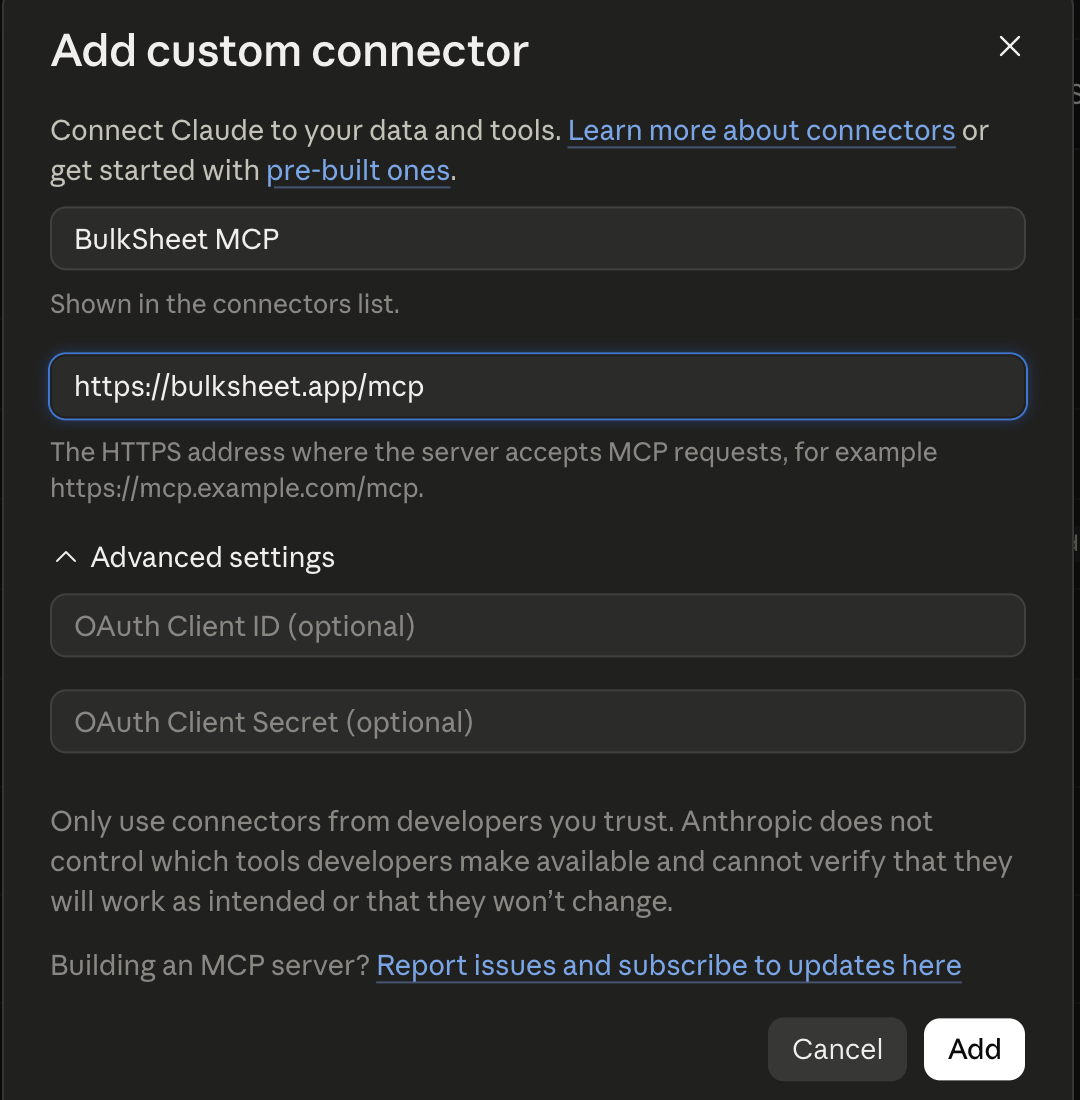
BulkSheet's Shopify MCP server connects to Claude, Cursor, or any MCP client - every plan, including Free.
Install on ShopifyClick Add, then Connect, and a new browser tab opens on a page BulkSheet itself controls - not Claude's UI, not a third party. It shows exactly which host is asking to connect (claude.ai here) before it asks for anything.
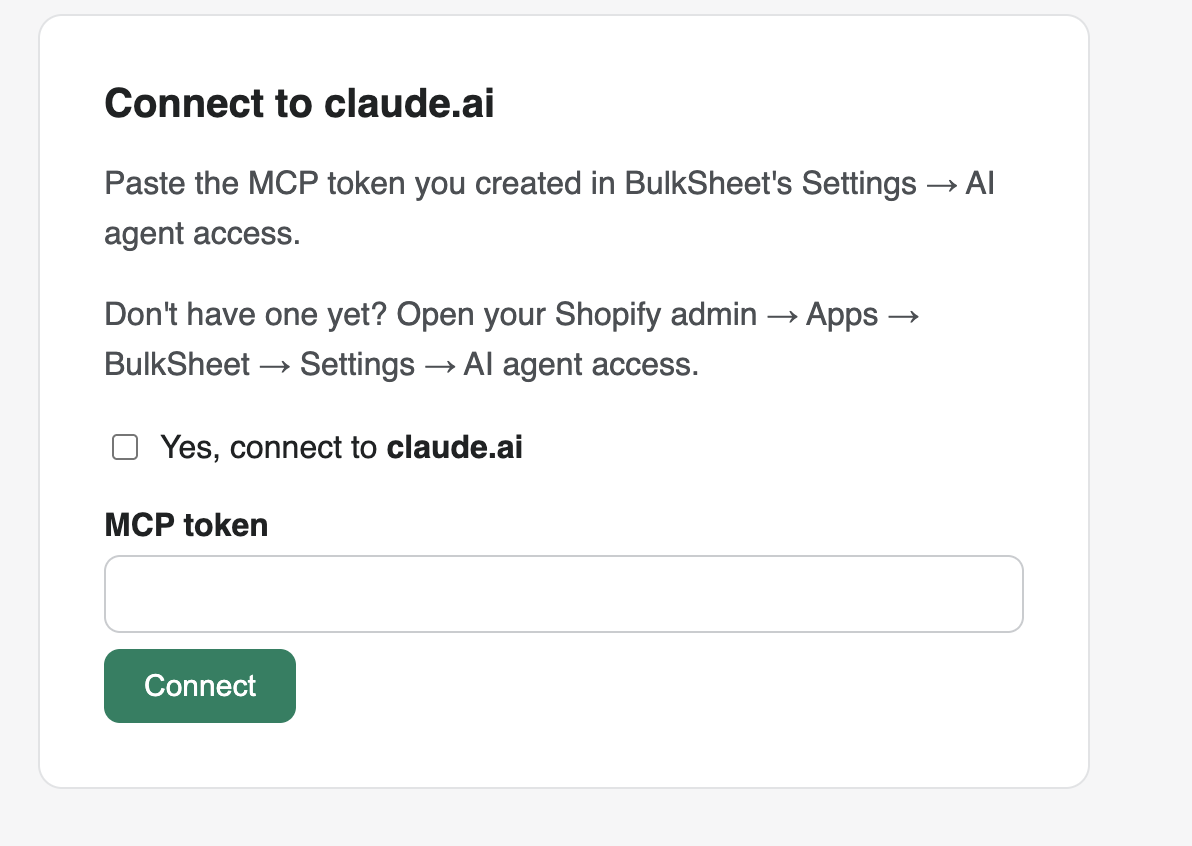
Paste the MCP token you created from Settings → AI agent access in the BulkSheet app, check the confirmation box, and click Connect. One detail worth knowing: the token you paste here proves you own this BulkSheet install, but it isn't the token Claude ends up using - a separate, dedicated connection token gets issued behind the scenes, so the one you pasted stays yours and untouched. You'll see both in Settings → AI agent access afterward.
Five tools, with per-tool approval
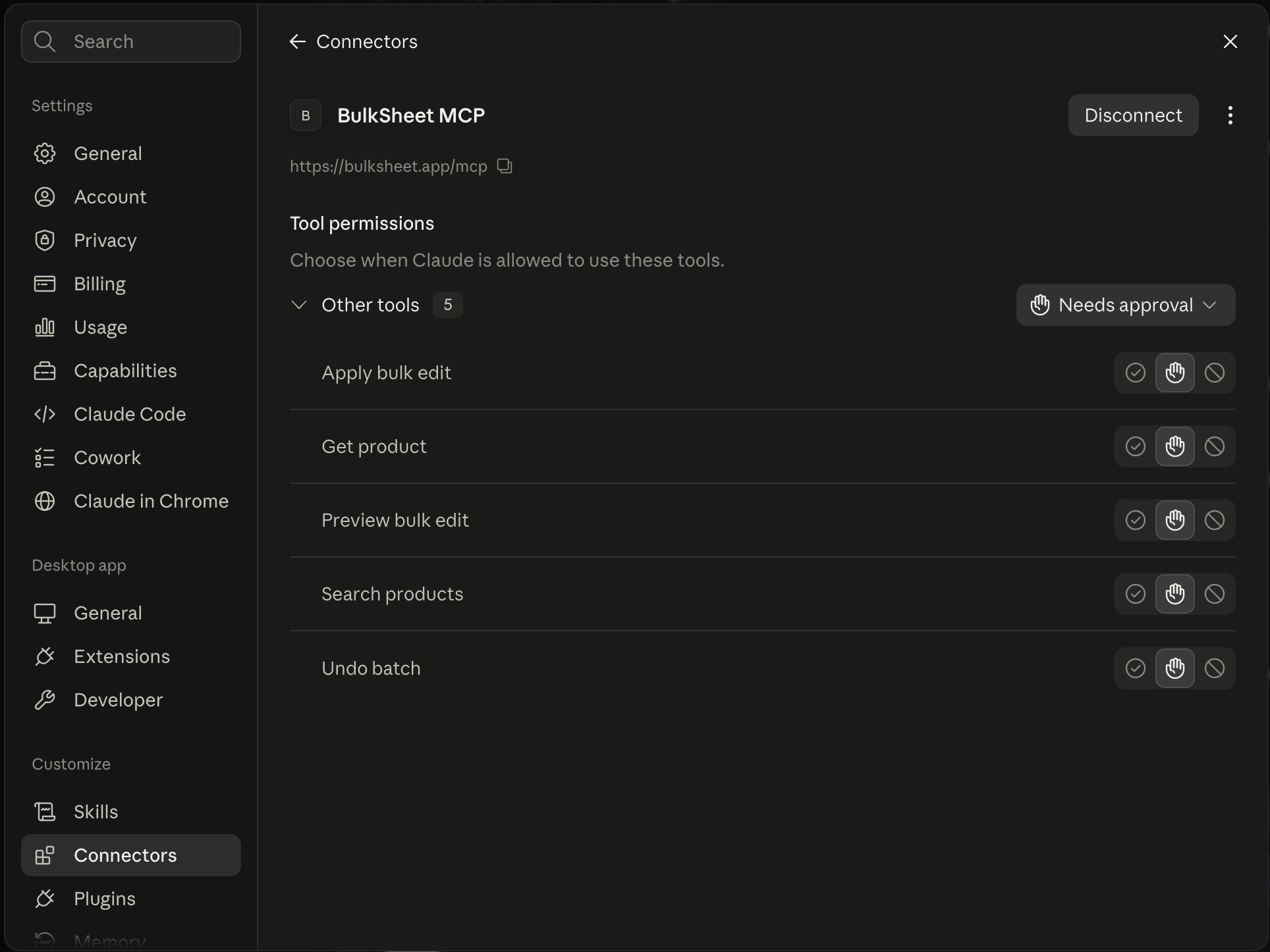
Back in Claude, the connector is live, and Claude's own settings let you control exactly when each of BulkSheet's five tools is allowed to run - useful if you want search and preview to run freely but want to approve every apply by hand.
Search, preview, apply, undo - the whole loop
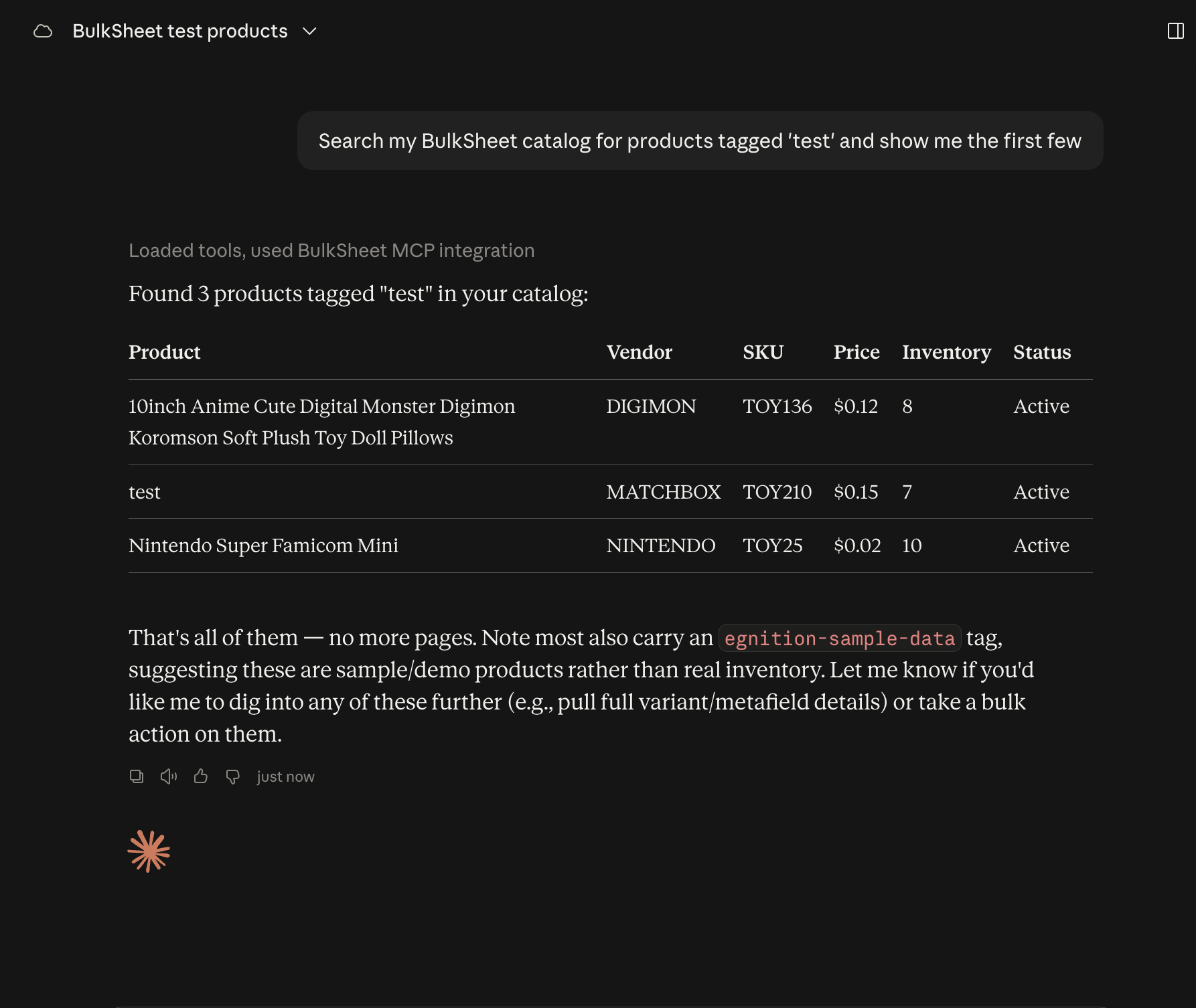
From here it's a normal conversation. Asking Claude to search the catalog returns real product data, not a summary Claude made up:
Asking for a bulk change previews it first - every affected product, tags before and after, and nothing written yet:
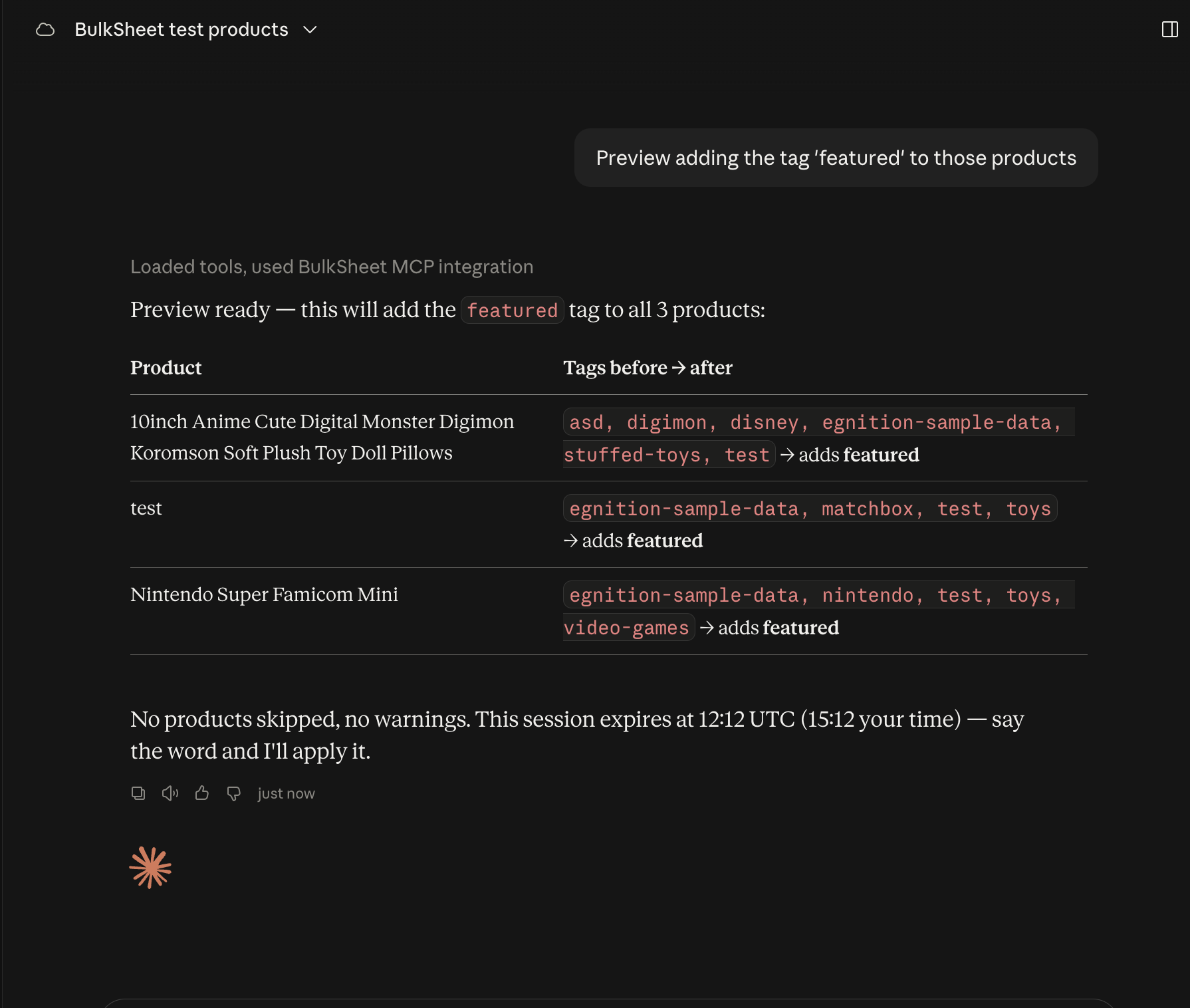
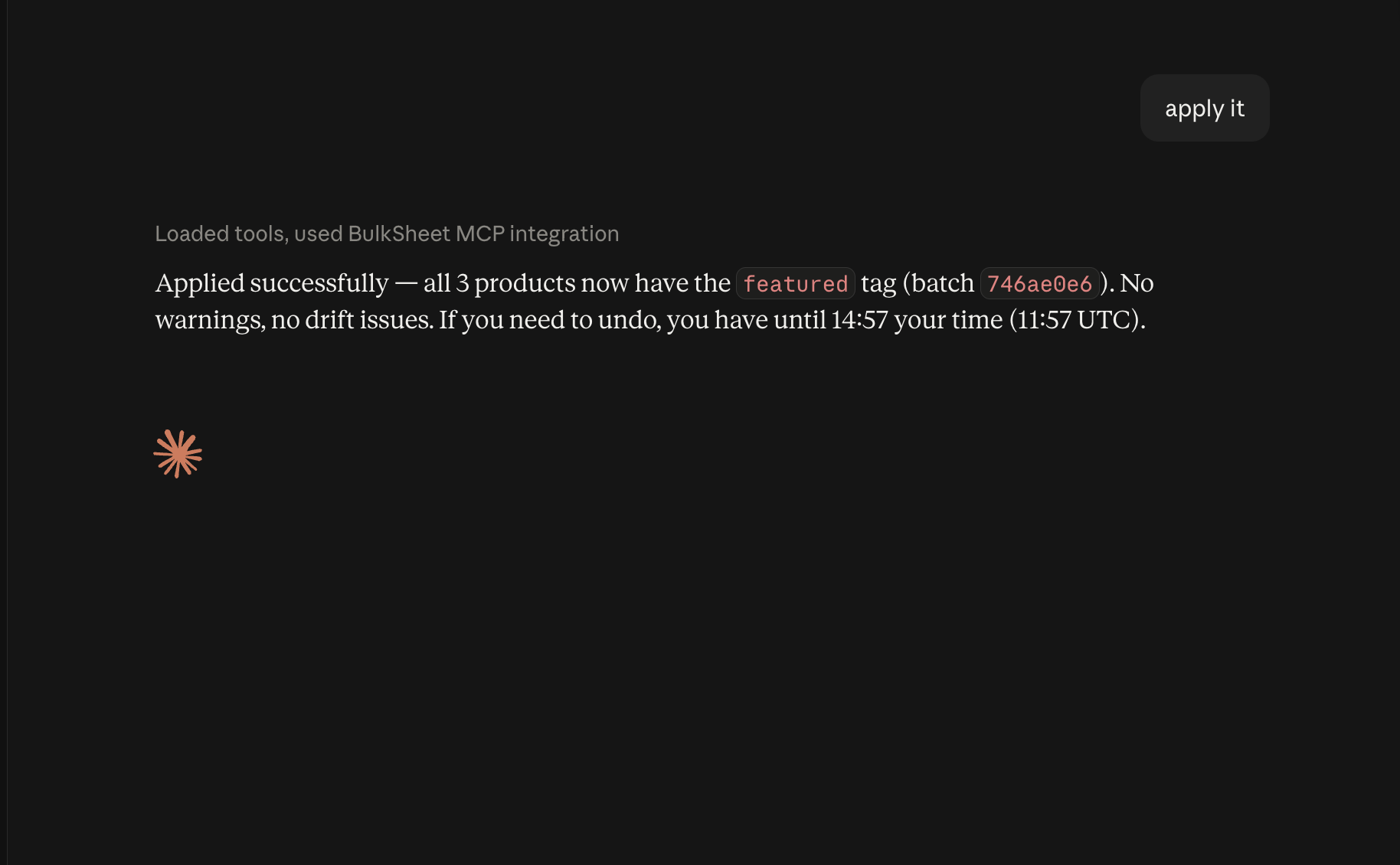
Confirming applies exactly that previewed batch - and gives you a batch ID for undo:
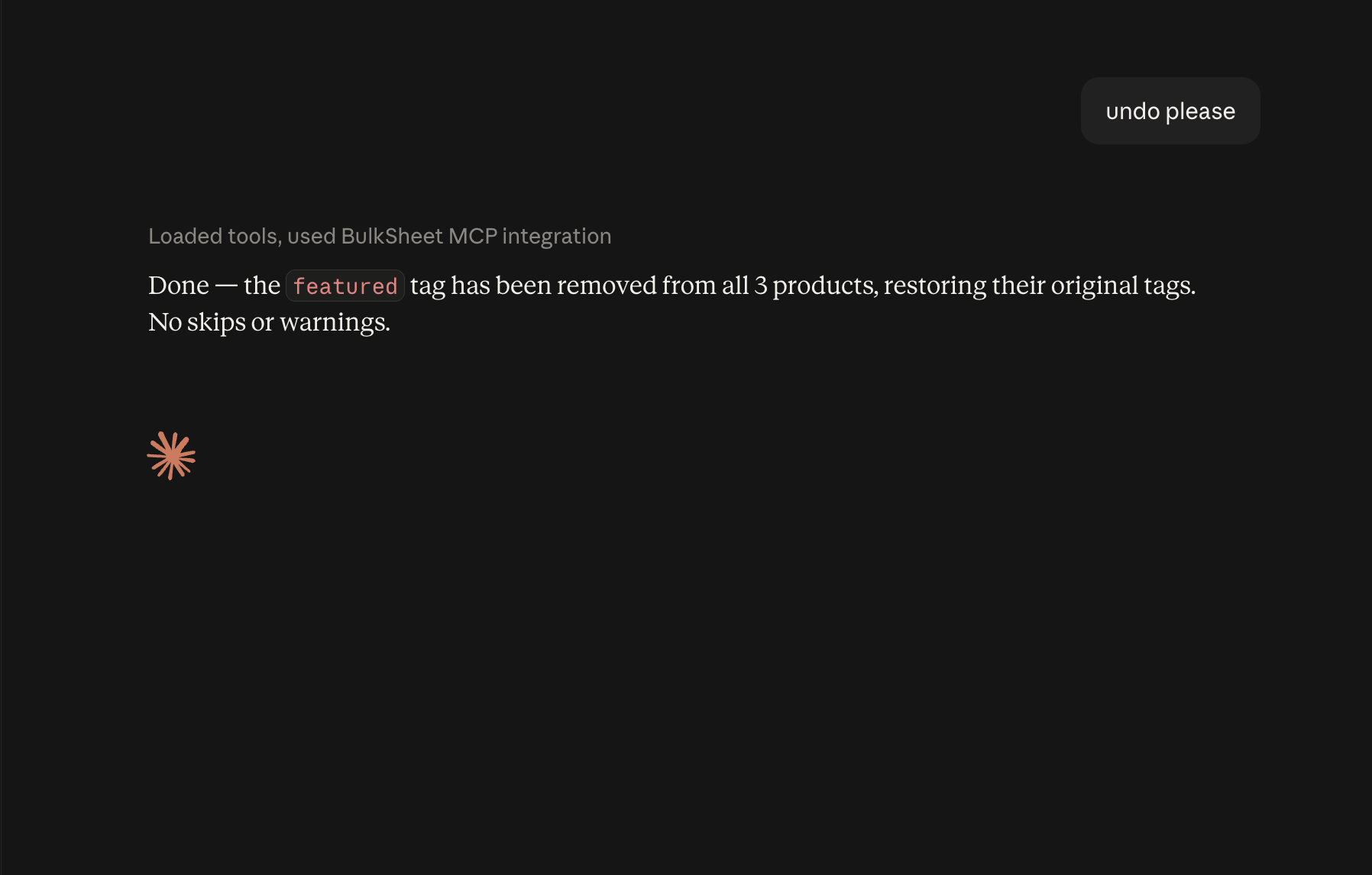
And undo genuinely reverts it, not just a “sure, done” reply:
What actually limits a misbehaving agent
Requiring a preview before apply is a product-quality safeguard - it catches mistakes early, but it isn't a security boundary. An agent that already holds a valid token can call apply directly, the same way any integration with write access to your store can. What actually limits the damage:
- Revocable, separately-labeled tokens. Settings → AI agent access shows every token - manually created and OAuth-issued - by name, with instant revoke.
- The same row caps and daily quota as the editor - agent edits and your own team's edits share one bucket, not two.
- Live drift detection at apply time and drift-aware undo - a field changed by someone else since preview is skipped and reported, never silently overwritten.
- Email notification on first apply, on any large operation, and now on every new OAuth connection - so a token being used somewhere you don't expect doesn't go unnoticed.
Curious about the rest, including how the OAuth connection itself is secured? See the Shopify MCP server details and Your catalog is safe.
Frequently asked questions
Do I need to configure a header or API key in Claude Desktop?
No. Claude Desktop and claude.ai connect through OAuth - you add the server URL, click Connect, and paste a token on BulkSheet's own page when prompted. Claude Code and Cursor still use a header-based token, since that's what those clients support.
Can Claude apply changes to my catalog without asking?
Every apply requires an explicit preview first, and Claude's own tool-permission settings (shown in the screenshots above) let you require approval on specific tools like Apply bulk edit. Preview is a product-quality safeguard, not the only thing stopping a compromised agent - see the guardrails section above for what actually limits the blast radius.
Ready to try it? Install BulkSheet - AI agent access is on every plan, including Free.