Connect Claude and AI agents to your Shopify catalog
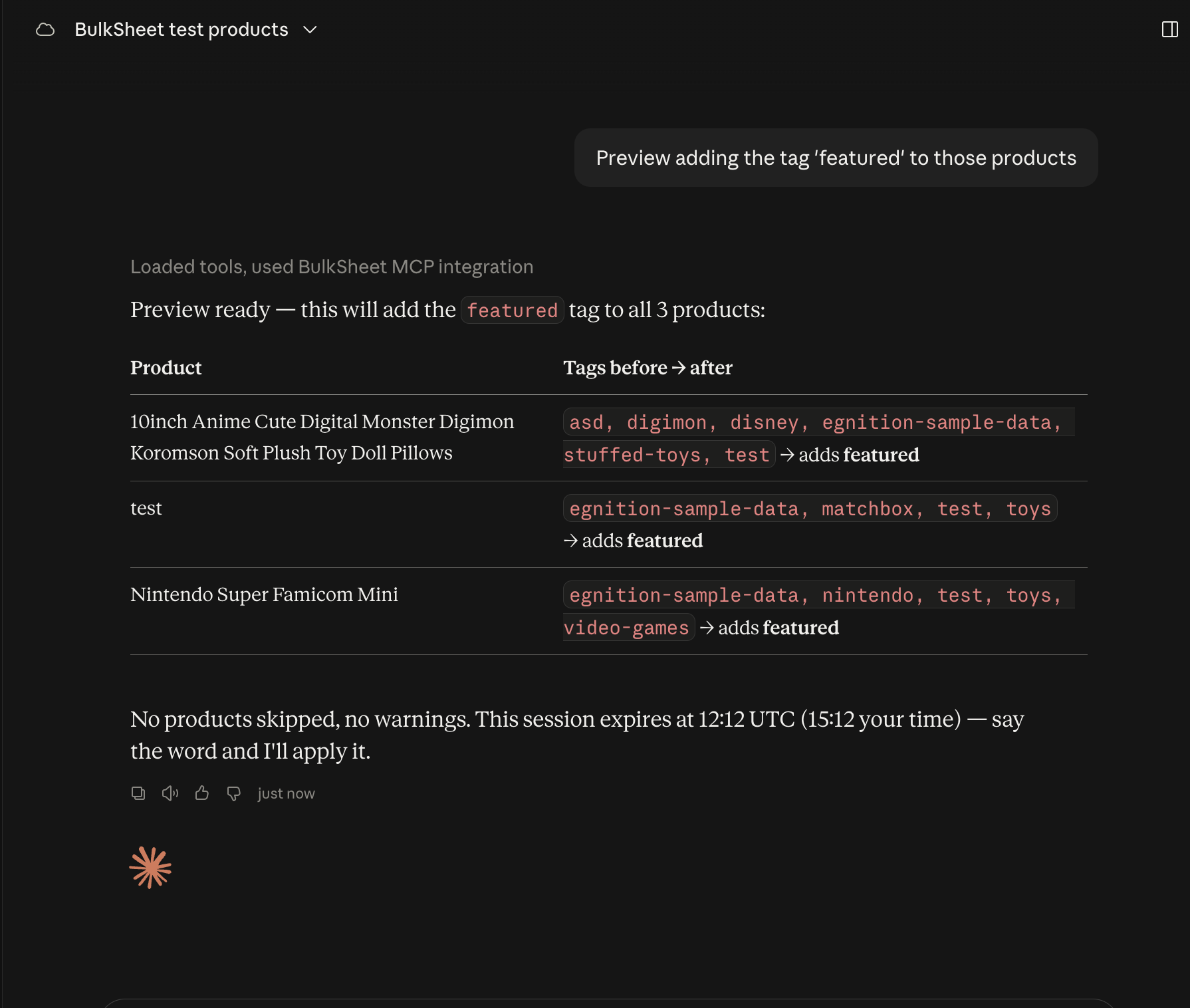
For example, you could ask an agent connected this way to:
“Find active products tagged summer, preview a 10% price reduction, and apply it after I approve.”
Curious what that actually looks like, screenshot by screenshot? See the real Claude walkthrough.
What an agent can do
BulkSheet isn't trying to expose every Shopify Admin API endpoint to an agent - just catalog editing, with the same preview, drift detection, and undo the editor itself relies on. Five tools, and nothing else - no order management, no customer data, no theme edits, no product create/delete, no CSV import:
- Search products - by tag, vendor, status, exact SKU, or exact handle.
- Get a product - full variant and metafield detail for one product.
- Preview a bulk edit - explicit field edits, a price/status/tag/inventory template, or find & replace, diffed against your live catalog without changing anything.
- Apply a bulk edit - only a previously previewed batch, and only with an explicit confirmation.
- Undo a batch - within 15 minutes of applying it.
Preview is a safeguard, not a security boundary
Requiring a preview before apply is a product-quality safeguard - you see row counts and sample diffs before anything is written, which catches mistakes early. It is not a security control: an agent that already holds a valid token can call apply directly, the same way any integration with write access to your store can. What actually limits the damage a misbehaving or compromised agent can do:
- Revocable tokens. Create a separate token per agent from Settings → AI agent access in the app, and revoke any one of them instantly - the agent loses access on its very next call.
- The same row caps as the editor. A single bulk edit is capped at 50 variant rows on Free, 250 on paid plans - re-checked again at apply time in case your plan changed since preview.
- Your normal daily save quota. Free-plan agent edits count against the same 100-product-per-day limit as the editor - agents and your own team share one bucket, not two.
- One agent mutation at a time per shop. Two agent calls (the same agent retrying, or two different agents) can't race each other into an inconsistent state.
- Live drift detection at apply time. Right before applying, we re-fetch the affected products. If a field the operation intends to change was already changed by someone (or something) else since the preview, that field is skipped and reported rather than silently overwritten.
- Email notification. You get an email the first time a token applies a change, again for any single operation touching 100 or more variant rows, and every time a token is issued through the OAuth connect flow - so a token being used somewhere you don't expect doesn't go unnoticed.
- Drift-aware undo. See below.
Undo, honestly described
Any active token on your shop can undo an applied batch within 15 minutes, by its batch ID. Undo never overwrites work that happened after the apply: for every field the batch changed, we compare its current live value to what the apply set it to. If that field changed again since then - you edited it, another agent touched it, a scheduled job ran - that field is skipped and reported, not forced back. A partial undo with some fields skipped is expected, correct behavior, not a bug. Undo is single-use: retrying an already-undone batch returns the same result without touching Shopify again.
Connect a client
First, create a token: open the app, go to Settings → AI agent access, give it a label (e.g. the agent or teammate using it), and copy the token shown - it is displayed once. Every client below needs the server URL; most also need that token sent as a bearer credential - Claude Desktop and claude.ai are the exception below, connecting via OAuth with no header to configure.
Server URL: https://bulksheet.app/mcp
Header: Authorization: Bearer <your token>
The token must be sent in the Authorization header - never as a URL query parameter. If a client's configuration only offers a URL field, look for a way to add a custom header rather than appending the token to the address.
Claude Code
Run this from a terminal, with your token in place:
claude mcp add --transport http bulksheet https://bulksheet.app/mcp \
  --header "Authorization: Bearer <your token>"
This writes the server into your .mcp.json. Run claude mcp list to confirm it connected, or add --scope user before bulksheet to make it available across every project instead of just the current one.
Claude Desktop / claude.ai
Claude Desktop and claude.ai connect with OAuth - you only need the server URL, no header to configure.
- Open Settings → Connectors (claude.ai) or Organization settings → Connectors (Team/Enterprise).
- Click Add custom connector, enter the server URL:
https://bulksheet.app/mcp, then click Connect. - A new browser tab opens on BulkSheet's own connect page. Check that it shows the destination host you expect, then paste the MCP token you created above and confirm.
- You're returned to Claude, which now shows the connector as connected - no further copy-pasting into Claude itself.
Cursor
Create or edit ~/.cursor/mcp.json (or a project-local .cursor/mcp.json) and add an entry:
{
  "mcpServers": {
    "bulksheet": {
      "type": "http",
      "url": "https://bulksheet.app/mcp",
      "headers": {
        "Authorization": "Bearer ${env:BULKSHEET_TOKEN}"
      }
    }
  }
}
Set the environment variable before launching Cursor (e.g. export BULKSHEET_TOKEN="<your token>" in your shell profile) so the token itself never lands in the config file, then restart Cursor.
Any other MCP client / raw API
BulkSheet's MCP endpoint speaks the standard Streamable HTTP transport and serves both current and legacy protocol revisions from the one URL above, so any spec-compliant MCP client library works. Send every request as a POST to that URL with Content-Type: application/json and the bearer header. A request without a valid token receives 401 with a WWW-Authenticate challenge; a request that is not JSON, is too large, or takes too long to send is rejected before any of your data is touched.
Managing access
From Settings → AI agent access you can see every token's label, creation date, and last-used time; revoke one token; or revoke all of them at once if you want to cut off every connected agent immediately. If an edit is already in flight, revocation waits up to 30 seconds for it to finish rather than leaving it half applied; if it is still running after that, we tell you to try again in a moment. Once revocation takes effect there is no propagation delay - the token cannot begin another edit, starting with its very next call.
Curious how BulkSheet protects your catalog generally, including for edits made in the browser? See Your catalog is safe.